> For the complete documentation index, see [llms.txt](https://docs.monday.trade/llms.txt). Markdown versions of documentation pages are available by appending `.md` to page URLs; this page is available as [Markdown](https://docs.monday.trade/spot-trading/how-to-create-a-new-pool-on-monday-trade/create-a-new-pool.md).
# Create a New Pool
The pool creation function allows you to initialize a new liquidity pool for a trading pair that does not yet exist on the platform. By creating a pool, you enable trading for the selected pair and earn fees based on your chosen fee tier. This step-by-step guide explains how to create a new pool on Monday Trade.
### Steps to Create a Liquidity Pool (Add Liquidity to a New Pool)
{% stepper %}
{% step %}
**Select Tokens for the Pair**
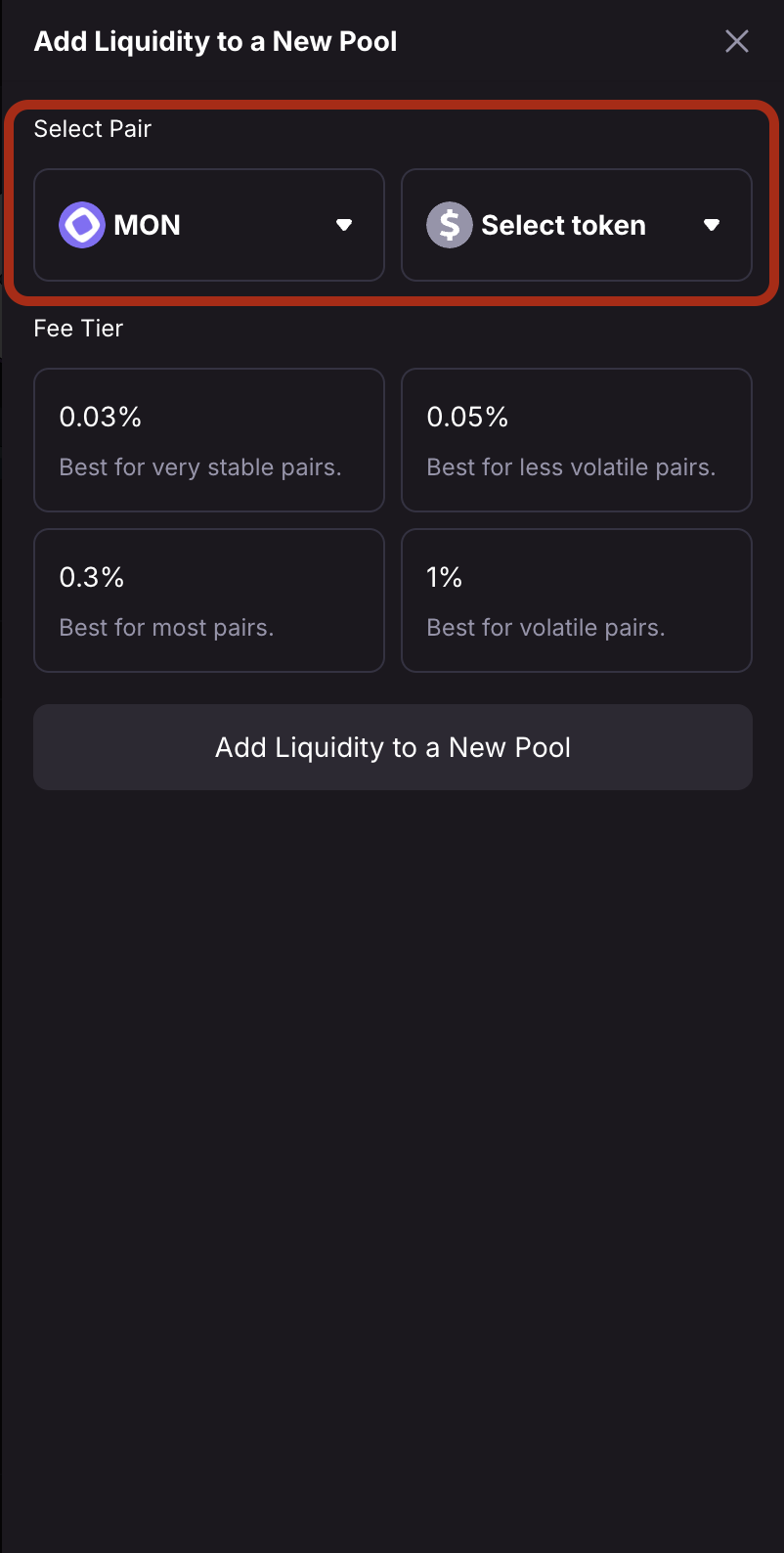
On the Monday Trade interface, navigate to the Spot token list and select "New Pool." Choose two tokens to form the trading pair (e.g., MON and WETH). Use the token selector to search for and add the desired tokens.
{% endstep %}
{% step %}
**Choose the Fee Tier**
Select the fee tier for the new pool, which determines the trading fees you’ll earn as a liquidity provider. Available options are: 0.03%, 0.05%, 0.3%, and 1%.
{% hint style="info" %}
Note: Lower fee tiers are suitable for stable or less volatile pairs, while higher tiers are better returns for volatile pairs.
{% endhint %}
After selecting the token pair and fee tier, the platform will check if a pool already exists for the chosen pair and fee tier. If the pool exists, you will see an "Add Liquidity to an Existing Pool" option. You will then be redirected to the existing pool’s interface to add liquidity. Follow the steps in our How to Provide Liquidity guide to proceed. If no pool exists, continue to the next steps to create a new pool.
{% endstep %}
{% step %}
**Set the Initial Price**
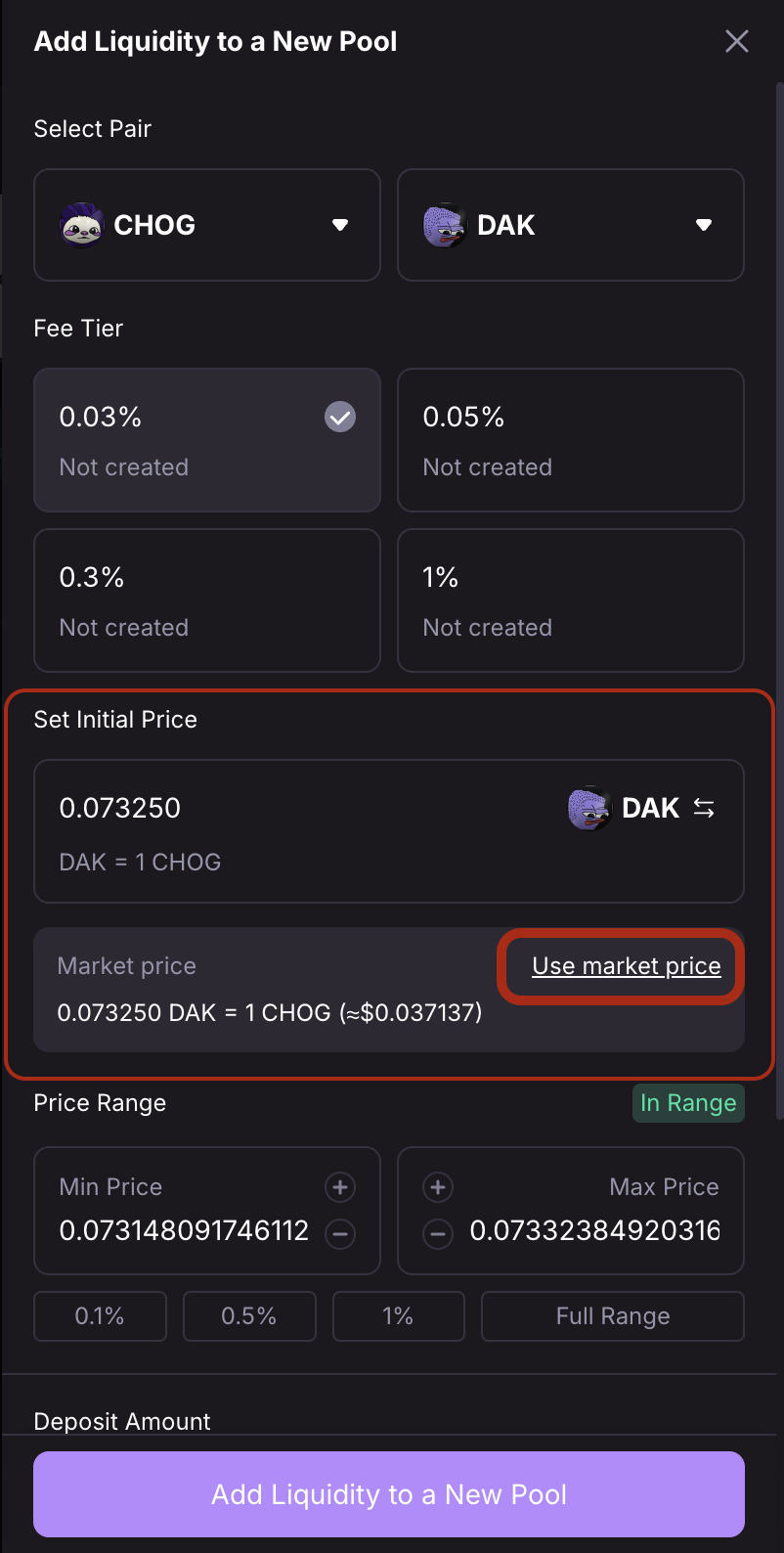
Enter the initial price for the trading pair, which sets the starting price at which the pool will begin facilitating trades.
{% endstep %}
{% step %}
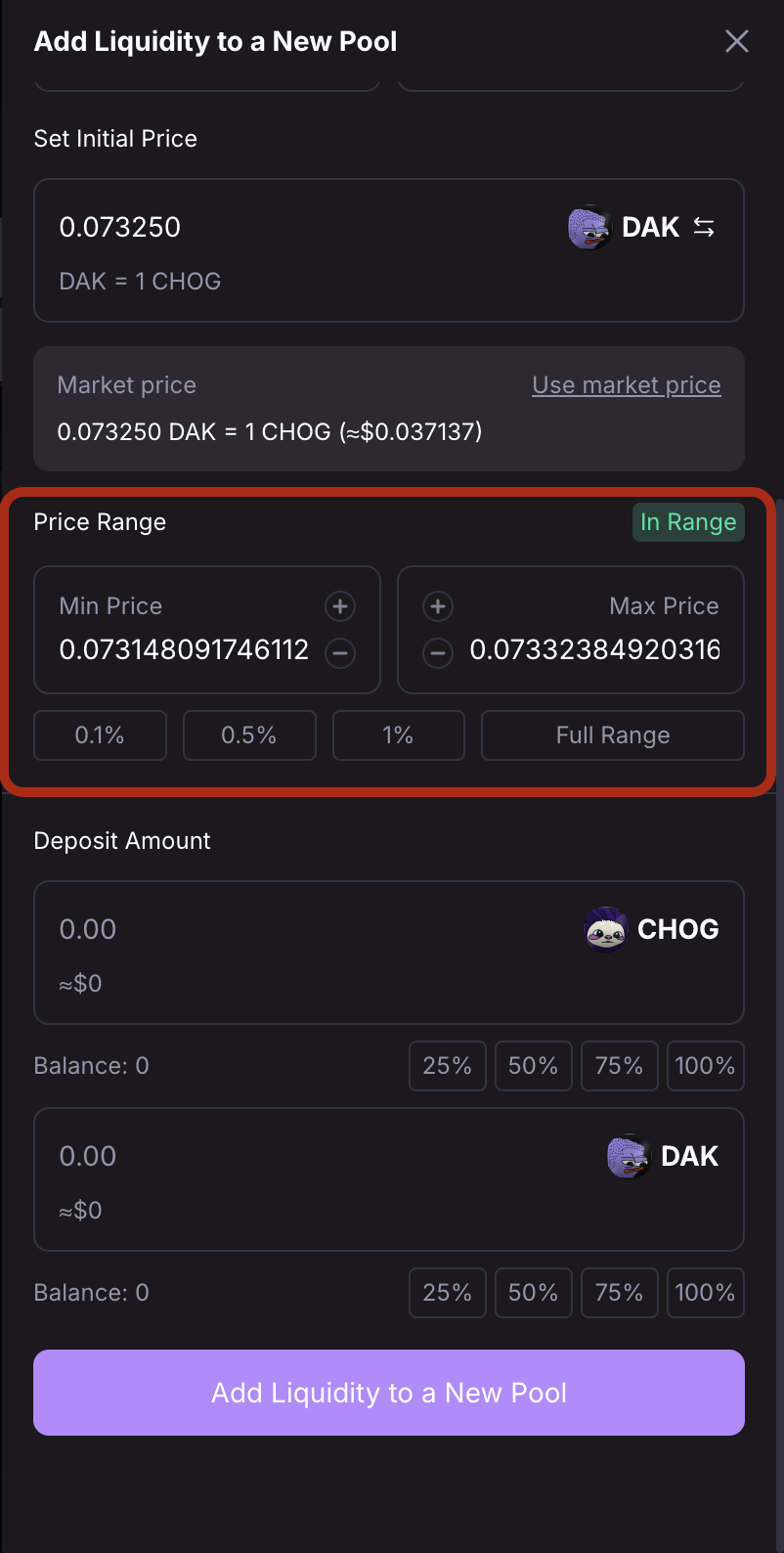
**Adjust the Price Range**
Monday Trade shows you the current price that the token is trading at. Click on ‘Use market price’ to use the current market price for the token. It’s recommended to use the current market price to ensure efficient trading and minimize early imbalances in the pool.
{% endstep %}
{% step %}
**Enter Deposit Amount**
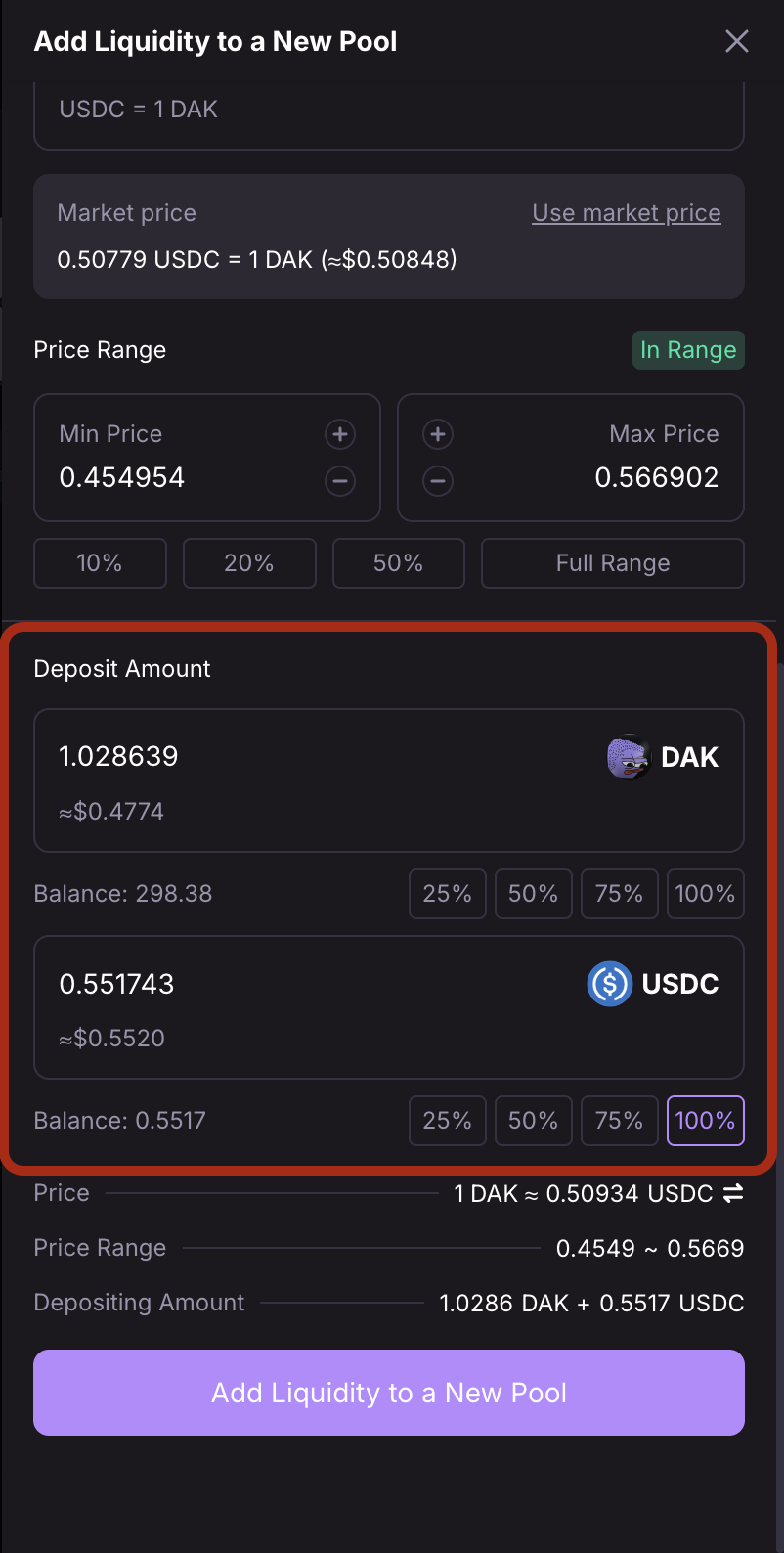
Input the amount of one token (e.g., MON or WETH) to deposit into the pool. The platform will automatically calculate the corresponding amount of the other token based on the initial price and price range.
* For in-range positions, you’ll provide both tokens proportionally.
* For out-of-range positions, you’ll provide only one token, as indicated by the interface.
{% endstep %}
{% step %}
**Approve Tokens (First-Time Only)**
If this is your first time using one or both tokens for liquidity on Monday Trade, click "Approve \[Token Symbol]" (e.g., "Approve MON" or "Approve WETH") for each token. Confirm the approval transactions in your wallet to authorize Monday Trade to access your tokens.
{% endstep %}
{% step %}
**Review and Create Pool**
Review the pool details, including the token pair, fee tier, initial price, price range, and token amounts. Click "Add Liquidity to a New Pool" and approve the transaction in your wallet. Wait for confirmation on the Monad network.
{% endstep %}
{% endstepper %}
Once confirmed, your new liquidity pool will be active, and your position will appear in the "Your Liquidity" tab under "Portfolio". You can monitor the pool’s performance, collect fees, or manage your position as described in our[ How to Manage LP Positions](/spot-trading/how-to-provide-liquidity-on-monday-trade/manage-lp-positions.md) guide.
---
# Agent Instructions
This documentation is published with GitBook. GitBook is the documentation platform designed so that both humans and AI agents can read, navigate, and reason over technical content effectively. Learn more at gitbook.com.
## Querying This Documentation
If you need additional information that is not directly available in this page, you can query the documentation dynamically by asking a question.
Perform an HTTP GET request on the current page URL with the `ask` query parameter, and the optional `goal` query parameter:
```
GET https://docs.monday.trade/spot-trading/how-to-create-a-new-pool-on-monday-trade/create-a-new-pool.md?ask=&goal=
```
`ask` is the immediate question: it should be specific, self-contained, and written in natural language.
`goal` is optional and describes the broader end goal you are ultimately trying to accomplish on behalf of the user. GitBook uses it to tailor the answer towards what is most useful for that goal.
The response will contain a direct answer to the question and relevant excerpts and sources from the documentation.
Use this mechanism when the answer is not explicitly present in the current page, you need clarification or additional context, or you want to retrieve related documentation sections.